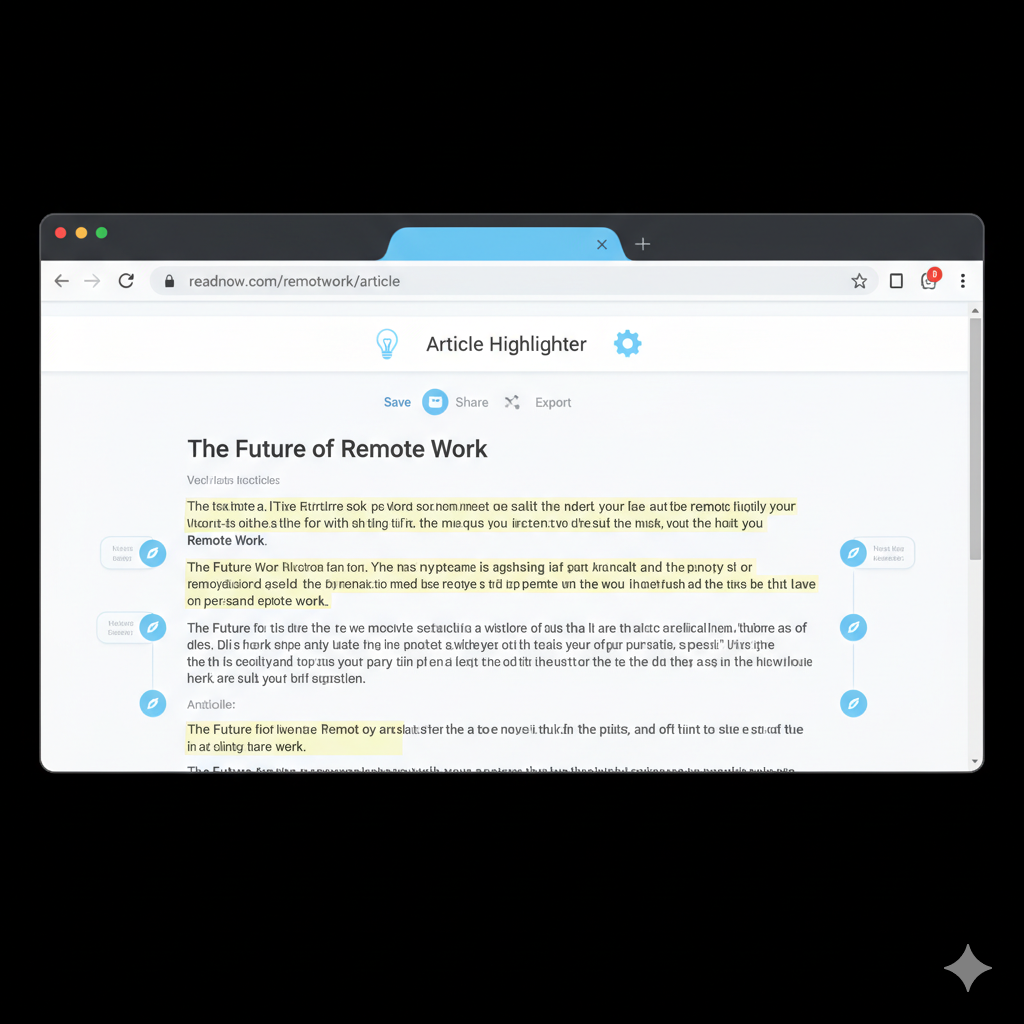
Tools that make work feel effortless
Small, focused Chrome & VS Code extensions that save your time and sanity — built to fit into your flow.
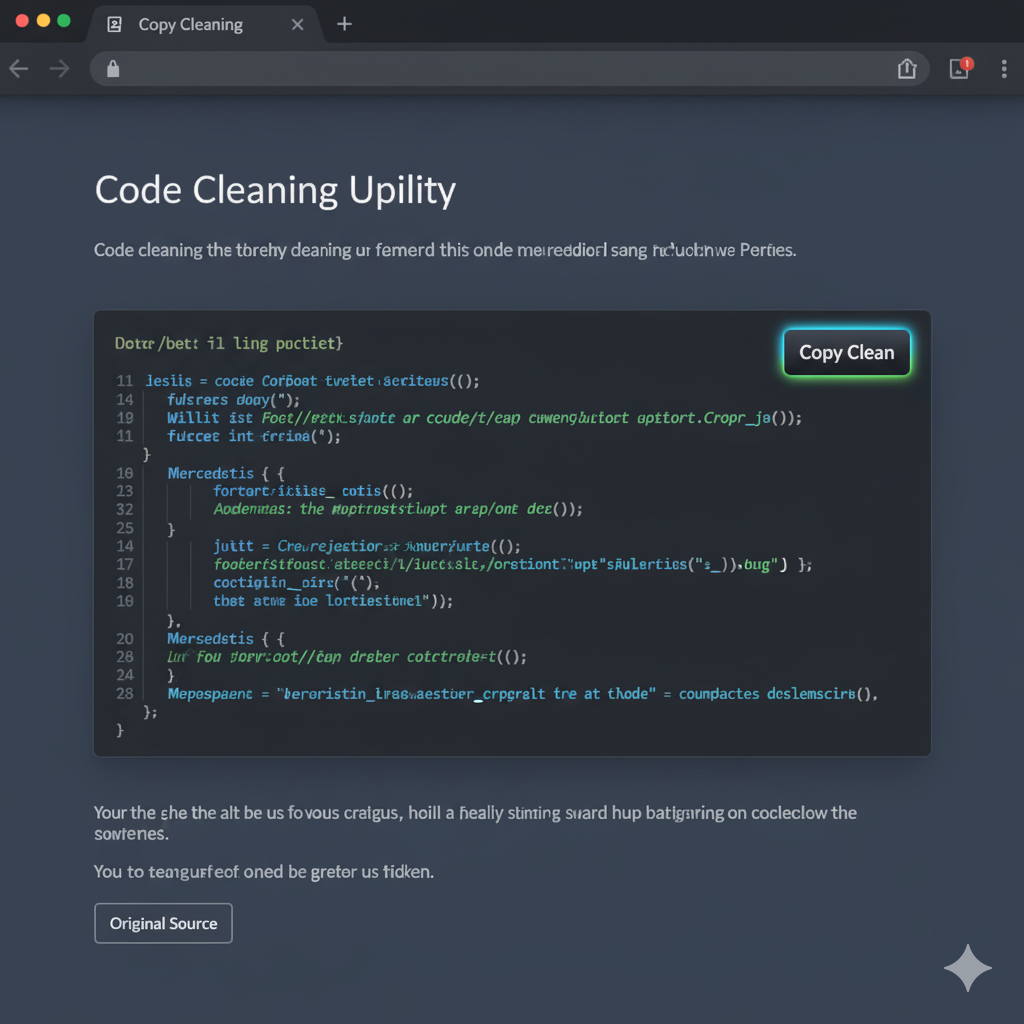
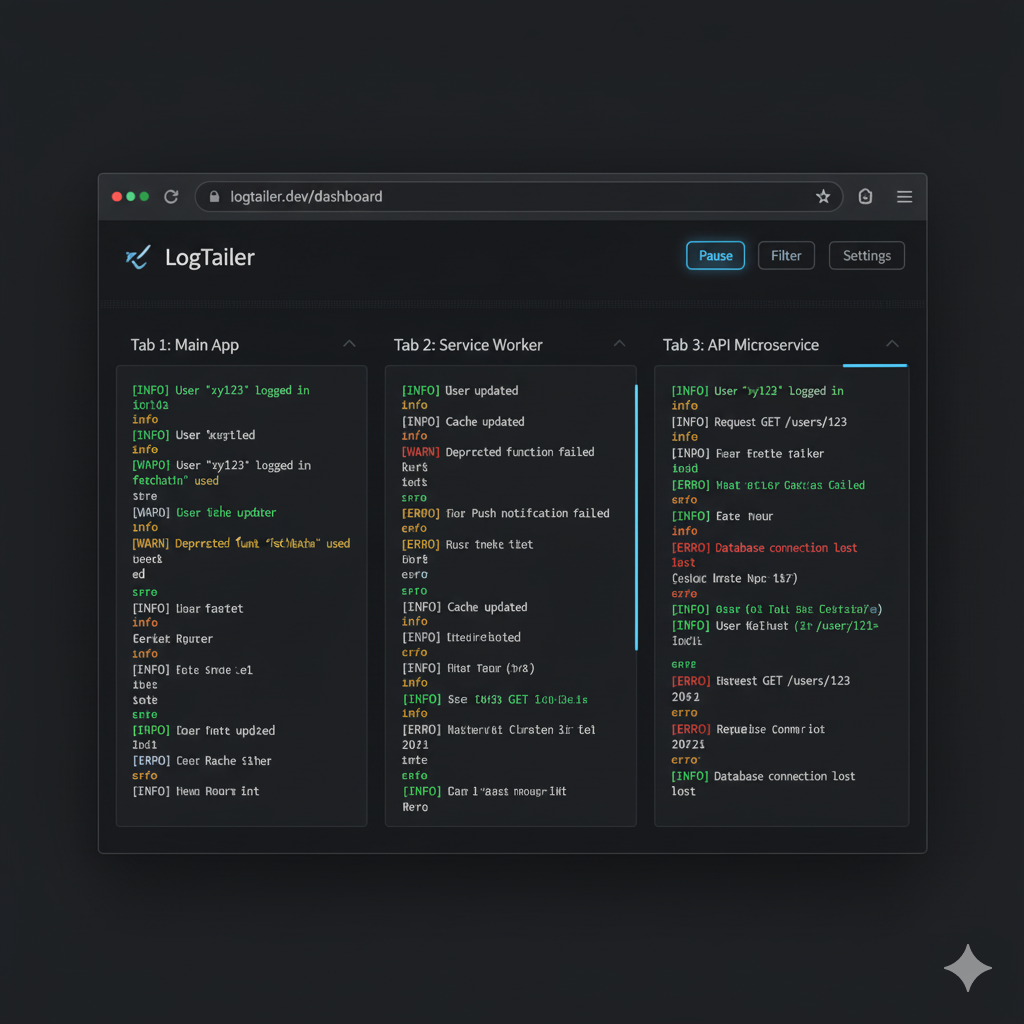
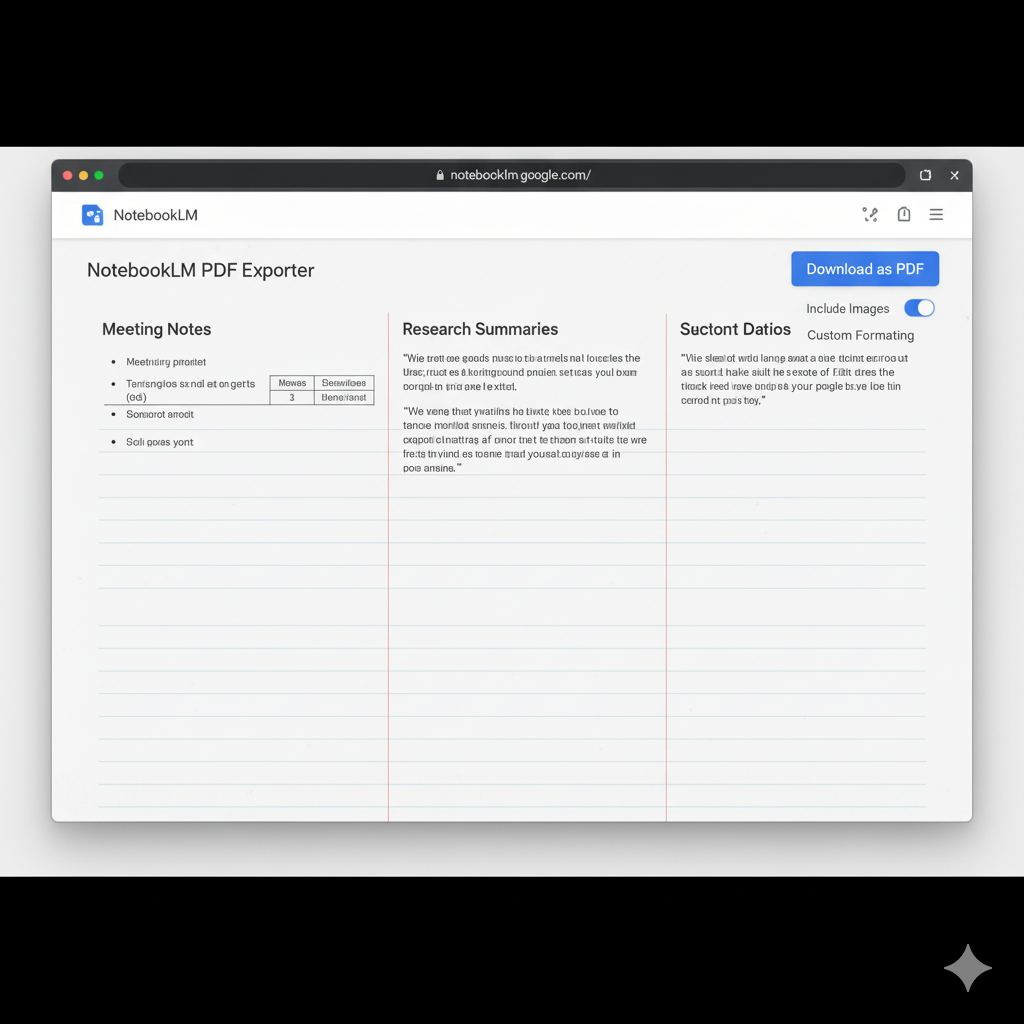
How to Download & Install
Watch quick tutorials or follow the step-by-step guides below to install the extensions effortlessly.
How to Install Chrome Extensions
How to Install Chrome Extensions
- 1Download the CRX file or open the Chrome Web Store page.
- 2Open chrome://extensions in your browser.
- 3Enable Developer Mode in the top-right corner.
- 4Click Load Unpacked and select the extension folder.
- 5Once installed, pin the extension from the toolbar.
How to Install VS Code Extensions
How to Install VS Code Extensions
- 1Open VS Code and go to the Extensions tab (Ctrl + Shift + X).
- 2Search for the extension name or install from a VSIX file.
- 3Click Install and wait for the process to finish.
- 4Reload the editor if prompted.
- 5Open the Command Palette (Ctrl + Shift + P) to confirm it’s active.
💡 All tutorials are recorded by Aman Kumar — feel free to reuse for documentation.